Techfullpost

Gadgets

How to Run Windows from a USB Drive: A Comprehensive Guide

windows usb/techfullnews

Running Windows directly from a USB drive is a game-changer for tech enthusiasts, professionals, and anyone who needs a portable, customizable operating system. Whether you want to test a new version of Windows, carry your personalized OS with your favorite apps and settings, or troubleshoot a system, this guide will walk you through the process step-by-step. Plus, we’ll share tips to optimize performance and ensure a seamless experience.


Why Run Windows from a USB Drive?

Running Windows from a USB drive offers several advantages:

  1. Portability: Carry your personalized Windows environment with you and use it on any compatible computer.
  2. Testing: Experiment with new versions of Windows without affecting your primary system.
  3. Troubleshooting: Use the USB drive to diagnose and fix issues on a malfunctioning PC.
  4. Privacy: Keep your files and apps secure on a portable drive, leaving no trace on the host computer.

However, it’s important to note that running Windows from a USB drive won’t match the performance of an internal SSD or HDD. The speed and responsiveness depend largely on the USB drive’s read/write speeds.


What You’ll Need

Before diving into the process, gather the following:

  1. A USB Drive: At least 16GB of storage is required, but 32GB or more is recommended for better performance. Opt for a USB 3.0 or higher drive for faster data transfer speeds.
  2. Windows ISO File: Download the Windows 10 or 11 ISO file from Microsoft’s official website.
  3. Rufus: A free, user-friendly tool to create a bootable USB drive.
  4. A Windows License Key: While not mandatory, activating Windows ensures full access to all features.
  5. BIOS Access: Ensure you can disable “Secure Boot” in your computer’s BIOS settings.

Step 1: Download the Windows ISO File

To create a bootable USB drive, you’ll need the Windows ISO file. Here’s how to download it:

For Windows 10:

  1. Visit the Windows 10 Download Page.
  2. Under the “Create Windows 10 Installation Media” section, click Download Now.
  3. Run the MediaCreationTool.exe file.
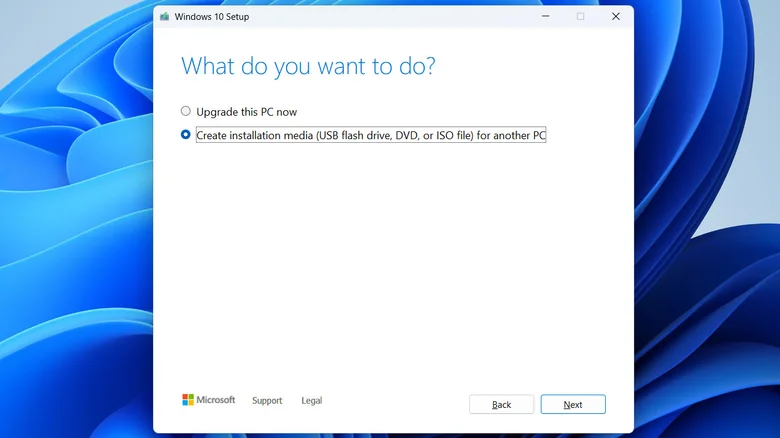
  4. Accept the terms and select Create installation media for another PC.
  5. Choose your preferred language, edition, and architecture (64-bit is recommended).
  6. Select ISO file and save it to your computer.

For Windows 11:

  1. Go to the Windows 11 Download Page.
  2. Scroll to the “Download Windows 11 Disk Image (ISO)” section.
  3. Select Windows 11 (multi-edition ISO) and click Download Now.
  4. Choose your language and click Download Now again.

Step 2: Create a Bootable USB Drive Using Rufus

Rufus is a reliable tool for creating bootable USB drives. Follow these steps:

  1. Download Rufus: Visit the official Rufus website and download the latest version.
  2. Plug in Your USB Drive: Ensure it’s empty, as the process will erase all data.
  3. Open Rufus: Launch the tool and select your USB drive under the Device dropdown.
  4. Select the ISO File: Click Select next to “Boot selection” and choose the Windows ISO file you downloaded.
  5. Choose “Windows To Go”: Under “Image option,” select Windows To Go. This option is specifically designed for running Windows from external drives.
  6. Start the Process: Leave other settings at their defaults and click Start.
  7. Wait for Completion: The process may take 15-30 minutes, depending on your USB drive’s speed.

Step 3: Boot Windows from the USB Drive

Once your bootable USB drive is ready, follow these steps to run Windows:

Method 1: Using the Boot Menu

  1. Insert the USB drive into the computer.
  2. Restart the PC and press the boot menu key (commonly F12, F11, Esc, or Delete) during startup.
  3. Select your USB drive from the boot menu and press Enter.

Method 2: Using Windows Settings (For Existing Windows Users)

  1. Press Windows + I to open Settings.
  2. Go to Update & Security (Windows 10) or System (Windows 11).
  3. Select Recovery and click Restart now under “Advanced startup.”
  4. After restarting, choose Use a device and select your USB drive.

Step 4: Set Up and Optimize Windows

When you boot Windows from the USB drive for the first time, you’ll need to complete the initial setup:

  1. Choose your language, region, and keyboard layout.
  2. Sign in with your Microsoft account or create a local account.
  3. Activate Windows using your license key (optional but recommended).

To optimize performance:

  • Use a high-speed USB 3.0 or higher drive.
  • Avoid running resource-intensive applications.
  • Regularly back up your data to prevent loss.

Limitations of Running Windows from a USB Drive

While convenient, running Windows from a USB drive has some drawbacks:

  1. Performance: Slower read/write speeds compared to internal drives.
  2. Durability: USB drives have limited write cycles, so frequent use may shorten their lifespan.
  3. Storage: Limited space may restrict the number of apps and files you can store.

Pro Tip: Use an External SSD for Better Performance

For a smoother experience, consider using an external SSD instead of a USB flash drive. SSDs offer faster speeds, greater durability, and more storage capacity, making them ideal for running Windows on the go.


Final Thoughts

Running Windows from a USB drive is a versatile solution for portability, testing, and troubleshooting. By following this guide, you can create a bootable USB drive and enjoy a personalized Windows experience on any compatible computer. While it may not replace your primary system, it’s a powerful tool to have in your tech arsenal.

Ready to get started? Download the Windows ISO file, grab a USB drive, and follow the steps above to create your portable Windows environment today!


Why Trust This Guide?
This guide is written by tech experts with years of experience in software and hardware optimization. We’ve tested every step to ensure accuracy and reliability, so you can follow along with confidence. Whether you’re a beginner or an advanced user, this guide is designed to help you succeed.
ADVERTISEMENT
RECOMMENDED
Gadgets

DeWalt Adds New Multi-Battery Chargers to Their Power Tool Line for 2025

By George Mensah 3 min read

DeWalt is leading the power tool industry with innovations that are designed to make work more efficient, portable, and reliable. Dependably tough tools and reliable battery systems are what DeWalt’s reputation is built on, and now the company is pushing further ahead with two new innovative charging solutions — a 4 AMP Multiport Charger and a 15 AMP Power Controller — both for professionals and DIYers who utilize multiple DeWalt batteries to get the job done.

A Closer Examination of the DeWalt 4 AMP Multiport Charger

As battery-powered tools become more common place in the workshop and on the job site, DeWalt is expanding its offerings with a handy and efficient multi-battery charging platform. The new 4 AMP Multiport Charger will charge four DeWalt batteries simultaneously, cutting downtime and keeping the user ready to go all day.

Easily configured, the charger has LEDs that show the charge level of each battery and mounting holes for easy wall-mounting — ideal for clean installs in garages or building trailers. It charges 12V MAX, 20V MAX, and FlexVolt batteries, offering broad compatibility across DeWalt’s cordless tool system.

Like most of DeWalt’s premium equipment, the 4 AMP Multiport Charger is protected by the company’s three-year limited warranty, one year of complimentary service, and 90-day satisfaction guarantee, which gives professionals purchasing new equipment peace of mind.

While DeWalt has yet to release an official release date or price tag, the new charger will roll out in the coming months as part of the company’s 2025 launch of its line of power accessories.

The Heavyweight Arrives: DeWalt’s 15 AMP Power Controller

For larger workshops or commercial clients working with a full fleet of tools, DeWalt is also preparing to release an even more powerful charging solution — the 15 AMP Power Controller.

This is a gadget designed to serve as a charging station with the capability of charging a maximum of 24 DeWalt batteries. It is achieved through six integrated AC outlets to allow users to plug in multiple multiport chargers (such as the recently launched 4-port charger) for bulk charging.

The Power Controller is indeed a power management system that allows dependable energy supply with the aid of professionals in efficient charging amidst stressful settings. It’s a dream for contractors, technicians, and workshop owners, considering the inconvenience of operating dozens of tools each day.

Although details regarding the price and the number available remain under wraps, DeWalt has promised that the Power Controller will be supported by the same industry-leading warranty and service protections as the rest of its high-end products.

A Big Year for DeWalt Fans

2025 promises to be a good year for DeWalt, with a number of new releases in the pipeline designed to enhance efficiency, organization, and productivity. From intelligent cordless tools to smart charging systems, the company is clearly doubling down on innovation in its battery ecosystem — a growing priority as the company continues to transition away from corded and gas-powered tools.

As the need for portable, battery-powered equipment grows across industries, DeWalt’s recent introductions demonstrate the company’s dedication to being an industry leader in professional tools. The 4 AMP Multiport Charger and the 15 AMP Power Controller are certain to be top choices among serious users wanting uninterrupted workflow.

In the meantime, fans and users alike will have to wait for DeWalt to unveil official launch schedules — but judging by the excitement the new products are generating, that wait could be worth it.

Gadgets

Microsoft is letting go of over 6,000 workers

By George Mensah 2 min read

In a significant corporate reshuffle, Microsoft has confirmed plans to lay off over 6,000 employees—approximately 3% of its global workforce—marking its largest workforce reduction since its 10,000-employee cut in 2023. The move signals a continued push for operational efficiency amid shifting market demands and follows a series of strategic adjustments across the tech giant’s divisions.

Breaking Down the Latest Microsoft Layoffs

Scope of the Job Cuts

  • Company-wide impact: Affecting employees across multiple business units, including LinkedIn (Microsoft-owned) and international offices.
  • Management restructuring: Aligns with CFO Amy Hood’s recent comments about reducing management layers to improve agility (April 30, 2024).
  • Performance-based adjustments: Follows earlier 2024 cuts targeting underperforming roles.

Microsoft’s Official Statement

“We continue to implement organizational changes necessary to best position the company for success in a dynamic marketplace.”
— Pete Wootton, Microsoft Spokesperson

A Pattern of Strategic Workforce Adjustments

This latest downsizing is part of a broader trend at Microsoft, which has undergone several workforce optimizations in recent years:

Recent Microsoft Layoffs Timeline

  • January 2023: 10,000 employees laid off (5% of workforce).
  • January 2024: 1,900 Activision Blizzard & Xbox employees let go post-acquisition.
  • May 2024: Closure of Tango Gameworks (Hi-Fi Rush) and Arkane Austin (Redfall) (later revived via Krafton deal).
  • June 2024: 1,000 HoloLens & Azure cloud employees cut.
  • September 2024: 650 Xbox employees laid off in Activision Blizzard integration.

Why Is Microsoft Restructuring?

Key Driving Factors

  1. Post-Acquisition Streamlining
    • Integrating Activision Blizzard has required restructuring, leading to redundancies.
  2. Focus on High-Growth Areas (AI & Cloud)
    • Redirecting resources toward Azure AI, Copilot, and enterprise cloud solutions.
  3. Economic Pressures & Shareholder Expectations
    • Tech sector faces slower growth, prompting cost-cutting measures.

Industry-Wide Trend

Microsoft isn’t alone—Google, Amazon, and Meta have also trimmed workforces in 2024, reflecting a broader tech industry recalibration after pandemic-era overhiring.

What’s Next for Microsoft Employees?

  • Severance & Transition Support: Microsoft typically offers 60+ days’ pay, healthcare extensions, and career placement services.
  • Reallocation Opportunities: Some employees may shift to priority divisions like AI and cybersecurity.

Final Thoughts: A Strategic Pivot, Not a Setback

While layoffs are disruptive, Microsoft’s moves suggest a deliberate shift toward AI and cloud dominance rather than financial distress. Investors and analysts will watch closely to see if these cuts translate into higher margins and innovation efficiency.

For affected employees, the tech job market remains strong in AI, data science, and cybersecurity, offering potential rebound opportunities.

ADVERTISEMENT
Receive the latest news

Subscribe To Our Weekly Newsletter

Get notified about new articles