
Techfullpost

DOES APPLE’S MAGIC MOUSE WORK WITH WINDOWS?

apple magic mouse/techfullnews

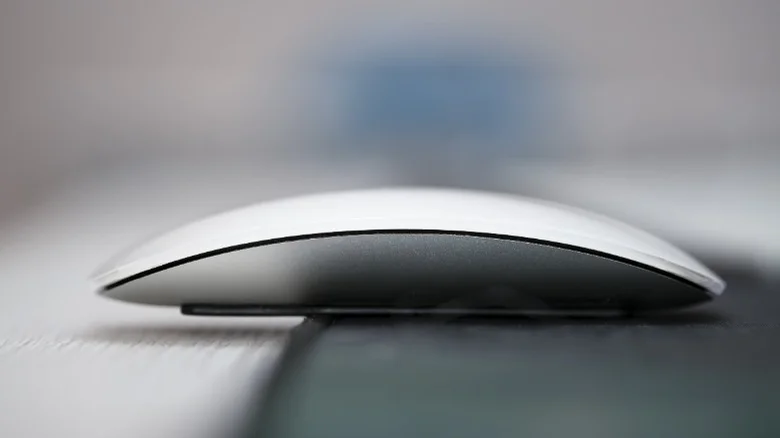
Apple is celebrated for its sleek and sophisticated devices, from the titanium-coated iPhone 16 Pro to the nearly bezel-free MacBook Pro displays. Among its accessories, the Apple Magic Mouse stands out as a strikingly minimalist and touch-enabled wireless mouse, eliciting both praise and criticism.

This guide delves into the unique features of the Magic Mouse, its design limitations, and how to make it functional on Windows devices, offering insights for both macOS enthusiasts and cross-platform users.

Features That Define the Apple Magic Mouse

Streamlined Design:
The Magic Mouse is a showcase of Apple’s design philosophy, offering a sleek, ultra-slim profile that pairs beautifully with other Apple products.

Touch-Enabled Surface:
Its standout feature is the multi-touch surface, allowing users to perform gestures such as scrolling and swiping. This functionality integrates seamlessly with macOS, delivering a touchpad-like experience.

Wireless Connectivity:
With built-in Bluetooth, the Magic Mouse eliminates cable clutter, providing a clean and modern workspace.

Why the Magic Mouse Divides Users
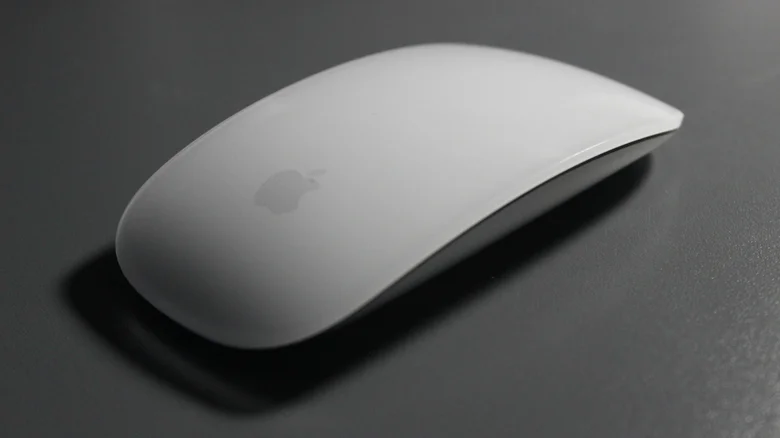
Despite its aesthetic appeal, the Magic Mouse has its share of detractors:

Ergonomics: The flat, low-profile design can feel uncomfortable during extended use, particularly for those accustomed to more contoured mice.

Charging Port Placement: The charging port, located on the underside, renders the mouse unusable while charging—a much-criticized design oversight.

Using the Magic Mouse with Windows
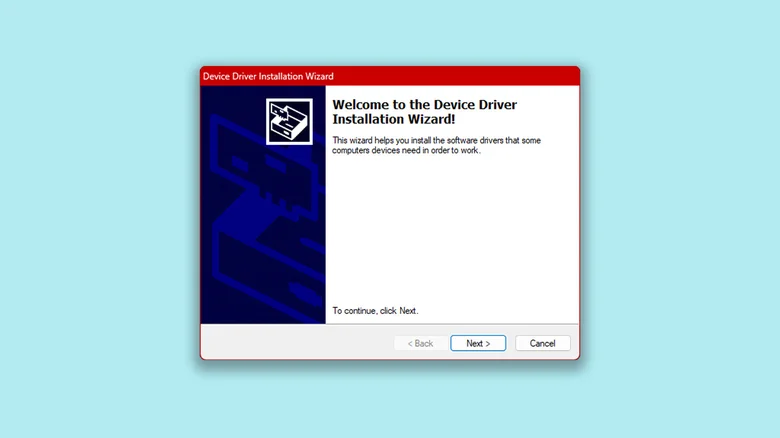
Although designed primarily for macOS, the Magic Mouse can function on Windows devices, albeit with some limitations.

Here’s how to connect it and restore key features.

Pairing the Magic Mouse with Windows

Ensure Bluetooth Compatibility:
Confirm that your Windows device supports Bluetooth. Laptops typically include this feature, but desktop users may need an adapter like the TP-Link USB Bluetooth Adapter, which is affordable and widely available.

Pairing Process:

Turn off the Magic Mouse using the switch on its underside.

Open Settings > Bluetooth & Devices on your Windows PC.
Toggle Bluetooth on and click “Add device.”

Select “Bluetooth,” then turn on the Magic Mouse.
When the Magic Mouse appears, click it to pair.

After pairing, basic functions like cursor movement and clicking should work, but scrolling will be unavailable.

Restoring Scrolling on Windows

To enable scrolling functionality, you can install drivers intended for Apple’s Boot Camp software. Follow these steps:

Download Boot Camp Drivers:

Visit Apple’s Boot Camp Support Software page and download the required files.
Extract and Install:

Use built-in extraction tools or third-party software like 7-Zip to open the downloaded ZIP file.

Navigate to BootCamp > Drivers > Apple and run the AppleWirelessMouse64.exe file.

Restart Your PC:

Reboot your system to apply the changes.

While this solution restores scrolling for many users, it is not officially supported by Apple and may not work for everyone.

Should Windows Users Consider the Magic Mouse?

The Magic Mouse shines when paired with macOS, offering seamless functionality and an elegant design. However, its limited compatibility with Windows and ergonomic drawbacks might make it less appealing for non-Mac users. Those prioritizing comfort and full functionality may find alternatives like the Logitech MX Master series more suitable.

Conclusion

The Apple Magic Mouse is a visually stunning accessory that integrates beautifully with Apple’s ecosystem. While its features are best experienced on macOS, determined Windows users can unlock some functionality with workarounds. Ultimately, the Magic Mouse is a stylish and innovative tool for those who value design, but its practicality depends on your platform and preferences.


ADVERTISEMENT
RECOMMENDED
NEXT UP

Apple’s entry-level iPad has just become its most compelling deal ever, dropping to a **record-low price of 299∗∗(normally299∗∗(normally349) at major retailers including Amazon, Walmart, and Best Buy. For anyone needing a reliable, no-frills tablet for everyday tasks—streaming, web browsing, light productivity, and video calls—this is one of the best tech bargains of the year.

What’s New in the 11th-Gen iPad?

Compared to its predecessor, Apple’s latest budget iPad brings meaningful upgrades that make it a much better long-term investment:

✔ A16 Bionic Chip – The same processor powering the iPhone 14, delivering smoother performance for multitasking and apps.
✔ 128GB Base Storage – Double the 64GB of the 10th-gen model—no more constant storage anxiety.
✔ 11-inch Liquid Retina Display – More screen space for movies, reading, and productivity.
✔ Improved 12MP Front Camera – Better for Zoom calls and FaceTime.
✔ USB-C Apple Pencil Support – Great for note-taking and light creative work.

Who Should Buy This iPad?

✅ Students – Perfect for note-taking (with Apple Pencil), research, and streaming lectures.
✅ Casual Users – Ideal for browsing, social media, and video streaming.
✅ Remote Workers – A solid secondary device for emails, Slack, and video calls.
✅ Families – A durable, long-lasting tablet for kids’ entertainment and learning.

What You’re Missing (And Why It Might Not Matter)

As Apple’s most affordable tablet, the 11th-gen iPad lacks some premium features:

❌ No Apple Intelligence (AI Features) – Only newer iPads (Pro, Air) support Apple’s upcoming AI tools.
❌ No Apple Pencil Pro Support – The USB-C Pencil works fine, but you miss extras like Find My and squeeze gestures.
❌ Non-Laminated Display – Slightly thicker bezels and less premium feel than the iPad Air.

But here’s the thing: If you just need a fast, dependable tablet without the bells and whistles, these omissions won’t affect your experience.

Is This the Best Budget Tablet in 2024?

iPad vs. The Competition

Feature11th-Gen iPad ($299)Samsung Galaxy Tab S9 FE ($399+)Amazon Fire Max 11 ($229)
PerformanceA16 Bionic (Very Fast)Exynos 1380 (Mid-Range)Mediatek (Basic)
Display11″ Liquid Retina10.9″ LCD11″ LCD
Stylus SupportUSB-C Apple PencilS Pen IncludedNo Precision Stylus
SoftwareiPadOS (5+ Years Updates)One UI (Slower Updates)Fire OS (Limited Apps)
Best ForAll-around useAndroid fansPrime Video & Kindle users

Verdict: If you want long-term software support, better performance, and Apple ecosystem benefits, the iPad is still the best value.

Final Recommendation

For $299, the 11th-gen iPad is a no-brainer for casual users. It’s fast enough for daily tasks, has great battery life, and will receive updates for years. Unless you need AI features or a pro-level stylus, this is the best cheap iPad deal right now.

In a major win for smart home enthusiasts, SwitchBot has announced plans to integrate over 45 of its products with Home Assistant in the first half of 2024. This move, confirmed in an email to The Verge, underscores SwitchBot’s commitment to interoperability and user flexibility in the rapidly evolving smart home ecosystem. Among the highlighted devices is the highly anticipated SwitchBot Hub 3, which was recently revealed in a filing with the Connectivity Standards Alliance.

What’s New in SwitchBot’s Home Assistant Integration?

SwitchBot’s integration rollout, set to begin in April, will include some of its most popular devices, such as:

  • Robot Vacuum K10 Plus Pro: A powerful cleaning solution that can now be seamlessly controlled via Home Assistant.
  • Curtain 3 Smart Shades: Automate your window treatments with precision and ease.
  • Garage Door Opener: Add your garage to your smart home network for enhanced security and convenience.

These new integrations will join existing SwitchBot devices like the SwitchBot Lock Pro, which already supports Home Assistant. This expansion not only enhances the functionality of SwitchBot’s ecosystem but also solidifies its position as a leader in the smart home industry.

Why This Matters for Home Assistant Users

Home Assistant, an open-source platform beloved by tech-savvy users, thrives on its ability to unify devices from various brands under one roof. However, integrations with major smart home players can often be fragile. Companies sometimes make undocumented software changes or actively block third-party integrations, leaving users frustrated.

SwitchBot’s proactive approach to integrating its devices with Home Assistant is a breath of fresh air. By officially supporting these integrations, SwitchBot ensures a stable, reliable, and user-friendly experience. This is particularly important for Home Assistant users who value customization and control over their smart home setups.

The Bigger Picture: A Shift Toward Open Ecosystems

SwitchBot’s announcement reflects a growing trend in the smart home industry: the push for open ecosystems and interoperability. As more consumers demand seamless integration across devices, companies like SwitchBot are stepping up to meet these expectations. This move not only benefits users but also fosters innovation and competition in the market.

For Home Assistant users, this means greater flexibility and fewer headaches. Instead of relying on fragile community-created integrations, they can now enjoy official support for a wide range of SwitchBot devices. This is a win for both convenience and reliability.

What’s Next for SwitchBot and Home Assistant?

With the first wave of integrations launching in April, users can look forward to a more cohesive and powerful smart home experience. The inclusion of devices like the Robot Vacuum K10 Plus Pro and Curtain 3 Smart Shades demonstrates SwitchBot’s dedication to enhancing everyday life through technology.

As the smart home landscape continues to evolve, partnerships like this one between SwitchBot and Home Assistant will play a crucial role in shaping the future of connected living. For now, smart home enthusiasts have plenty to be excited about as SwitchBot brings its innovative products into the Home Assistant fold.

ADVERTISEMENT
Receive the latest news

Subscribe To Our Weekly Newsletter

Get notified about new articles