
Techfullpost

How to Run Windows from a USB Drive: A Comprehensive Guide

windows usb/techfullnews

Running Windows directly from a USB drive is a game-changer for tech enthusiasts, professionals, and anyone who needs a portable, customizable operating system. Whether you want to test a new version of Windows, carry your personalized OS with your favorite apps and settings, or troubleshoot a system, this guide will walk you through the process step-by-step. Plus, we’ll share tips to optimize performance and ensure a seamless experience.


Why Run Windows from a USB Drive?

Running Windows from a USB drive offers several advantages:

  1. Portability: Carry your personalized Windows environment with you and use it on any compatible computer.
  2. Testing: Experiment with new versions of Windows without affecting your primary system.
  3. Troubleshooting: Use the USB drive to diagnose and fix issues on a malfunctioning PC.
  4. Privacy: Keep your files and apps secure on a portable drive, leaving no trace on the host computer.

However, it’s important to note that running Windows from a USB drive won’t match the performance of an internal SSD or HDD. The speed and responsiveness depend largely on the USB drive’s read/write speeds.


What You’ll Need

Before diving into the process, gather the following:

  1. A USB Drive: At least 16GB of storage is required, but 32GB or more is recommended for better performance. Opt for a USB 3.0 or higher drive for faster data transfer speeds.
  2. Windows ISO File: Download the Windows 10 or 11 ISO file from Microsoft’s official website.
  3. Rufus: A free, user-friendly tool to create a bootable USB drive.
  4. A Windows License Key: While not mandatory, activating Windows ensures full access to all features.
  5. BIOS Access: Ensure you can disable “Secure Boot” in your computer’s BIOS settings.

Step 1: Download the Windows ISO File

To create a bootable USB drive, you’ll need the Windows ISO file. Here’s how to download it:

For Windows 10:

  1. Visit the Windows 10 Download Page.
  2. Under the “Create Windows 10 Installation Media” section, click Download Now.
  3. Run the MediaCreationTool.exe file.
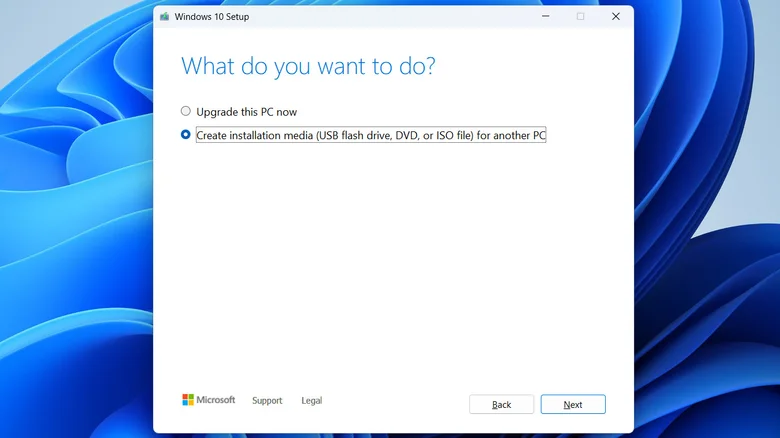
  4. Accept the terms and select Create installation media for another PC.
  5. Choose your preferred language, edition, and architecture (64-bit is recommended).
  6. Select ISO file and save it to your computer.

For Windows 11:

  1. Go to the Windows 11 Download Page.
  2. Scroll to the “Download Windows 11 Disk Image (ISO)” section.
  3. Select Windows 11 (multi-edition ISO) and click Download Now.
  4. Choose your language and click Download Now again.

Step 2: Create a Bootable USB Drive Using Rufus

Rufus is a reliable tool for creating bootable USB drives. Follow these steps:

  1. Download Rufus: Visit the official Rufus website and download the latest version.
  2. Plug in Your USB Drive: Ensure it’s empty, as the process will erase all data.
  3. Open Rufus: Launch the tool and select your USB drive under the Device dropdown.
  4. Select the ISO File: Click Select next to “Boot selection” and choose the Windows ISO file you downloaded.
  5. Choose “Windows To Go”: Under “Image option,” select Windows To Go. This option is specifically designed for running Windows from external drives.
  6. Start the Process: Leave other settings at their defaults and click Start.
  7. Wait for Completion: The process may take 15-30 minutes, depending on your USB drive’s speed.

Step 3: Boot Windows from the USB Drive

Once your bootable USB drive is ready, follow these steps to run Windows:

Method 1: Using the Boot Menu

  1. Insert the USB drive into the computer.
  2. Restart the PC and press the boot menu key (commonly F12, F11, Esc, or Delete) during startup.
  3. Select your USB drive from the boot menu and press Enter.

Method 2: Using Windows Settings (For Existing Windows Users)

  1. Press Windows + I to open Settings.
  2. Go to Update & Security (Windows 10) or System (Windows 11).
  3. Select Recovery and click Restart now under “Advanced startup.”
  4. After restarting, choose Use a device and select your USB drive.

Step 4: Set Up and Optimize Windows

When you boot Windows from the USB drive for the first time, you’ll need to complete the initial setup:

  1. Choose your language, region, and keyboard layout.
  2. Sign in with your Microsoft account or create a local account.
  3. Activate Windows using your license key (optional but recommended).

To optimize performance:

  • Use a high-speed USB 3.0 or higher drive.
  • Avoid running resource-intensive applications.
  • Regularly back up your data to prevent loss.

Limitations of Running Windows from a USB Drive

While convenient, running Windows from a USB drive has some drawbacks:

  1. Performance: Slower read/write speeds compared to internal drives.
  2. Durability: USB drives have limited write cycles, so frequent use may shorten their lifespan.
  3. Storage: Limited space may restrict the number of apps and files you can store.

Pro Tip: Use an External SSD for Better Performance

For a smoother experience, consider using an external SSD instead of a USB flash drive. SSDs offer faster speeds, greater durability, and more storage capacity, making them ideal for running Windows on the go.


Final Thoughts

Running Windows from a USB drive is a versatile solution for portability, testing, and troubleshooting. By following this guide, you can create a bootable USB drive and enjoy a personalized Windows experience on any compatible computer. While it may not replace your primary system, it’s a powerful tool to have in your tech arsenal.

Ready to get started? Download the Windows ISO file, grab a USB drive, and follow the steps above to create your portable Windows environment today!


Why Trust This Guide?
This guide is written by tech experts with years of experience in software and hardware optimization. We’ve tested every step to ensure accuracy and reliability, so you can follow along with confidence. Whether you’re a beginner or an advanced user, this guide is designed to help you succeed.
ADVERTISEMENT
RECOMMENDED
NEXT UP

Apple’s entry-level iPad has just become its most compelling deal ever, dropping to a **record-low price of 299∗∗(normally299∗∗(normally349) at major retailers including Amazon, Walmart, and Best Buy. For anyone needing a reliable, no-frills tablet for everyday tasks—streaming, web browsing, light productivity, and video calls—this is one of the best tech bargains of the year.

What’s New in the 11th-Gen iPad?

Compared to its predecessor, Apple’s latest budget iPad brings meaningful upgrades that make it a much better long-term investment:

✔ A16 Bionic Chip – The same processor powering the iPhone 14, delivering smoother performance for multitasking and apps.
✔ 128GB Base Storage – Double the 64GB of the 10th-gen model—no more constant storage anxiety.
✔ 11-inch Liquid Retina Display – More screen space for movies, reading, and productivity.
✔ Improved 12MP Front Camera – Better for Zoom calls and FaceTime.
✔ USB-C Apple Pencil Support – Great for note-taking and light creative work.

Who Should Buy This iPad?

✅ Students – Perfect for note-taking (with Apple Pencil), research, and streaming lectures.
✅ Casual Users – Ideal for browsing, social media, and video streaming.
✅ Remote Workers – A solid secondary device for emails, Slack, and video calls.
✅ Families – A durable, long-lasting tablet for kids’ entertainment and learning.

What You’re Missing (And Why It Might Not Matter)

As Apple’s most affordable tablet, the 11th-gen iPad lacks some premium features:

❌ No Apple Intelligence (AI Features) – Only newer iPads (Pro, Air) support Apple’s upcoming AI tools.
❌ No Apple Pencil Pro Support – The USB-C Pencil works fine, but you miss extras like Find My and squeeze gestures.
❌ Non-Laminated Display – Slightly thicker bezels and less premium feel than the iPad Air.

But here’s the thing: If you just need a fast, dependable tablet without the bells and whistles, these omissions won’t affect your experience.

Is This the Best Budget Tablet in 2024?

iPad vs. The Competition

Feature11th-Gen iPad ($299)Samsung Galaxy Tab S9 FE ($399+)Amazon Fire Max 11 ($229)
PerformanceA16 Bionic (Very Fast)Exynos 1380 (Mid-Range)Mediatek (Basic)
Display11″ Liquid Retina10.9″ LCD11″ LCD
Stylus SupportUSB-C Apple PencilS Pen IncludedNo Precision Stylus
SoftwareiPadOS (5+ Years Updates)One UI (Slower Updates)Fire OS (Limited Apps)
Best ForAll-around useAndroid fansPrime Video & Kindle users

Verdict: If you want long-term software support, better performance, and Apple ecosystem benefits, the iPad is still the best value.

Final Recommendation

For $299, the 11th-gen iPad is a no-brainer for casual users. It’s fast enough for daily tasks, has great battery life, and will receive updates for years. Unless you need AI features or a pro-level stylus, this is the best cheap iPad deal right now.

In a major win for smart home enthusiasts, SwitchBot has announced plans to integrate over 45 of its products with Home Assistant in the first half of 2024. This move, confirmed in an email to The Verge, underscores SwitchBot’s commitment to interoperability and user flexibility in the rapidly evolving smart home ecosystem. Among the highlighted devices is the highly anticipated SwitchBot Hub 3, which was recently revealed in a filing with the Connectivity Standards Alliance.

What’s New in SwitchBot’s Home Assistant Integration?

SwitchBot’s integration rollout, set to begin in April, will include some of its most popular devices, such as:

  • Robot Vacuum K10 Plus Pro: A powerful cleaning solution that can now be seamlessly controlled via Home Assistant.
  • Curtain 3 Smart Shades: Automate your window treatments with precision and ease.
  • Garage Door Opener: Add your garage to your smart home network for enhanced security and convenience.

These new integrations will join existing SwitchBot devices like the SwitchBot Lock Pro, which already supports Home Assistant. This expansion not only enhances the functionality of SwitchBot’s ecosystem but also solidifies its position as a leader in the smart home industry.

Why This Matters for Home Assistant Users

Home Assistant, an open-source platform beloved by tech-savvy users, thrives on its ability to unify devices from various brands under one roof. However, integrations with major smart home players can often be fragile. Companies sometimes make undocumented software changes or actively block third-party integrations, leaving users frustrated.

SwitchBot’s proactive approach to integrating its devices with Home Assistant is a breath of fresh air. By officially supporting these integrations, SwitchBot ensures a stable, reliable, and user-friendly experience. This is particularly important for Home Assistant users who value customization and control over their smart home setups.

The Bigger Picture: A Shift Toward Open Ecosystems

SwitchBot’s announcement reflects a growing trend in the smart home industry: the push for open ecosystems and interoperability. As more consumers demand seamless integration across devices, companies like SwitchBot are stepping up to meet these expectations. This move not only benefits users but also fosters innovation and competition in the market.

For Home Assistant users, this means greater flexibility and fewer headaches. Instead of relying on fragile community-created integrations, they can now enjoy official support for a wide range of SwitchBot devices. This is a win for both convenience and reliability.

What’s Next for SwitchBot and Home Assistant?

With the first wave of integrations launching in April, users can look forward to a more cohesive and powerful smart home experience. The inclusion of devices like the Robot Vacuum K10 Plus Pro and Curtain 3 Smart Shades demonstrates SwitchBot’s dedication to enhancing everyday life through technology.

As the smart home landscape continues to evolve, partnerships like this one between SwitchBot and Home Assistant will play a crucial role in shaping the future of connected living. For now, smart home enthusiasts have plenty to be excited about as SwitchBot brings its innovative products into the Home Assistant fold.

ADVERTISEMENT
Receive the latest news

Subscribe To Our Weekly Newsletter

Get notified about new articles