
Techfullpost

HOW TO SHARE A NOTE ON IPHONE

iphone note/techfullnews

The iPhone’s Notes app might seem like a simple tool at first, but its features extend far beyond basic note-taking. Whether you’re jotting down reminders, crafting a shopping list, or collaborating on a project, Notes provides a versatile platform to keep your ideas organized and accessible. One of its standout features is the ability to share notes effortlessly, making it an excellent option for communication and teamwork. This guide will walk you through various ways to share a note and collaborate effectively.

Sharing Notes: The Basics

The Notes app allows you to share your ideas quickly, whether as a static note or in a collaborative environment. Here’s how to get started:

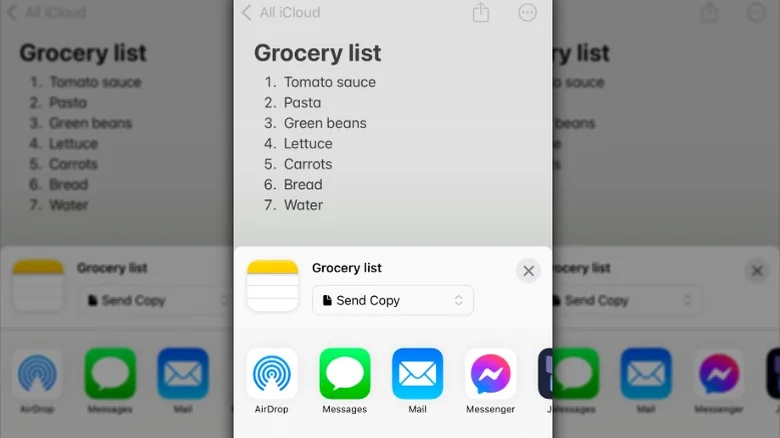
Sending a Copy of a Note

If you need to share information without allowing edits, you can send a static copy of your note. This method ensures your content remains unaltered while still providing recipients with the details they need.

Steps to send a copy of a note:

Open the Notes app on your iPhone.

Select the note you wish to share.

Tap the Share icon (a box with an upward-pointing arrow).
Choose Send Copy from the options.

Select your preferred sharing method, such as email, Messages, or third-party apps like WhatsApp.

This approach is ideal for straightforward communication where collaboration isn’t required.

Real-Time Collaboration: Sharing and Editing Notes Together
For tasks that require input from others, such as brainstorming sessions or shared to-do lists, the Notes app offers collaboration features. With iCloud, you can invite others to view and edit notes or even share an entire folder.

Preparing for Collaboration
Before you begin:

Ensure your iPhone is updated to the latest iOS version.

Verify that iCloud is enabled on both your device and the recipient’s device.

Steps to Collaborate on a Single Note

Open the Notes app.

Select the note you want to share.
Tap the Share icon.

Choose Collaborate from the menu.
Set permissions:

Under Who Can Access, select Only invited people for added privacy or Anyone with the link for broader access.
Under Permissions, choose between Can make changes or View only.

Decide if others can invite additional collaborators by toggling the Allow others to invite option.

Share the invitation through your preferred method, such as Messages or Mail.

Steps to Collaborate on a Folder


If you want to share multiple notes, you can collaborate on an entire folder:

Open the Notes app and navigate to the folder you wish to share.

Tap the More Options icon (three dots) and select Collaborate.
Configure permissions as described above.
Share the folder using Messages, Mail, or other supported platforms.

Tips for Smooth Collaboration

Stay Updated on Edits: When a shared note is modified, you’ll receive notifications (especially if shared via Messages). Tap these updates to view changes in real-time.

Control Access: Use the appropriate permissions to manage who can view or edit the note. For sensitive content, restrict access to specific individuals.

Undo Mistakes: Even in collaborative notes, you can undo edits to correct errors or unintended changes.

Organize with Folders: For group projects or ongoing tasks, sharing folders can streamline access and keep everything organized.

Monitor iCloud Storage: Ensure sufficient iCloud storage is available for seamless sharing, especially if your notes include attachments or media.

Why Use the Notes App for Sharing?

While messaging platforms like WhatsApp or Telegram dominate personal communication, the Notes app offers a dedicated space for focused collaboration. Its features are designed to minimize distractions, making it ideal for structured teamwork. Whether you’re coordinating plans, sharing a checklist, or brainstorming ideas, the Notes app provides the tools needed for effective communication and productivity.

Conclusion

Sharing and collaborating through the iPhone Notes app unlocks its full potential as more than just a note-taking tool. By leveraging its sharing capabilities, you can simplify communication, enhance productivity, and manage teamwork with ease. Whether you’re working on a quick note or an extensive project, understanding how to share a note ensures you make the most of this versatile app.


ADVERTISEMENT
RECOMMENDED
NEXT UP

Signal has rolled out a critical privacy-focused update for its Windows app, introducing a “screen security” setting that prevents the system from capturing screenshots—directly countering Microsoft’s controversial Recall feature.

This move reinforces Signal’s commitment to user privacy, ensuring sensitive conversations remain protected even against AI-powered background surveillance. Here’s everything you need to know.


Why Signal Is Blocking Windows Screenshots

Microsoft Recall: A Privacy Concern

Microsoft’s Recall feature (announced in 2023) continuously captures and stores screenshots of user activity, allowing Windows 11 users to “scroll back in time” and revisit past actions.

Despite Microsoft pausing Recall’s rollout after backlash, the company reintroduced it in April 2024 via the Windows Insider Preview Channel with key changes:
✔ Opt-in requirement (users must enable it manually)
✔ Pause functionality (temporary deactivation)

However, Signal argues that Recall still poses risks:
🔴 Potential exposure of sensitive chats (even if encrypted)
🔴 Lack of granular app-level control (Recall captures everything by default)

How Signal’s “Screen Security” Works

When enabled, this setting:
✅ Blocks Windows from screenshotting Signal’s window (shows a blank screen instead)
✅ Prevents Recall from storing private conversations
✅ Maintains end-to-end encryption integrity

⚠ Trade-off: Some accessibility tools (like screen readers) may not function properly with this setting active.


How to Enable (or Disable) Signal’s Screen Security

Step-by-Step Guide

  1. Open Signal Desktop
  2. Go to Settings > Privacy > Screen Security
  3. Toggle “Block screenshots” (enabled by default)

🔹 Disabling the feature requires confirmation (to prevent accidental deactivation).
🔹 A warning appears reminding users of potential privacy risks.


Signal’s Critique of Microsoft’s Approach

In a blog post, Signal expressed frustration with the need for such workarounds:

“We hope that AI teams building systems like Recall will consider these implications more carefully. Apps like Signal shouldn’t need a ‘one weird trick’ to protect user privacy—developers deserve better tools.”

Key Issues with Recall

🔸 No API for apps to opt out (forcing manual workarounds like Signal’s)
🔸 Potential security vulnerabilities (stored screenshots could be accessed by malware)
🔸 Privacy vs. convenience imbalance (users may not fully understand the risks)


What This Means for Windows Users

✔ Signal users gain stronger privacy protection against Recall.
✔ Other encrypted apps (like WhatsApp, Telegram) may follow suit.
✔ Microsoft faces continued scrutiny over AI-powered surveillance features.

Should You Disable Recall Entirely?

If privacy is a priority:

  1. Avoid enabling Recall (if using Windows Insider builds).
  2. Use Signal’s screen security for encrypted chats.
  3. Monitor future Windows updates for improved privacy controls.

Final Verdict: A Necessary Move for Privacy

Signal’s update highlights the growing tension between AI convenience and user privacy. While Microsoft positions Recall as a productivity tool, its always-on screenshotting raises legitimate security concerns.

By proactively blocking Recall, Signal sets a precedent—tech companies must prioritize privacy by design, not as an afterthought.

Saudi Crown Prince Mohammed bin Salman has made a strategic leap into artificial intelligence with the launch of Humain, a state-backed AI company poised to transform the Kingdom’s technological capabilities. This ambitious venture represents more than just another tech startup—it’s a cornerstone of Saudi Arabia’s Vision 2030 plan to diversify its oil-dependent economy and establish itself as a global AI leader.

Inside the Humain Initiative

Infrastructure Development

  • Massive data center construction across strategic Saudi locations
  • Cloud computing capabilities to rival global hyperscalers
  • AI research facilities with cutting-edge hardware

Financial Backing

  • Funded by Saudi Arabia’s $940 billion Public Investment Fund (PIF)
  • Part of broader $40 billion AI investment plan announced earlier this year
  • Positions Saudi Arabia as the world’s largest AI investor

The Geopolitical Context

High-Profile AI Summit Coincidence

The Humain launch coincides with a major U.S.-Saudi investment forum attracting tech titans:

  • Elon Musk (Tesla, xAI, SpaceX)
  • Sam Altman (OpenAI)
  • Mark Zuckerberg (Meta)
  • President Trump’s scheduled visit to the region

Strategic Partnerships

American tech giants are already engaging with Saudi’s AI ambitions:

  • Google’s cloud partnership with Saudi Aramco
  • Salesforce’s Middle East expansion
  • Microsoft’s $2.1 billion Saudi cloud investment

Why This Matters for Global Tech

1. Shifting AI Power Centers

Saudi Arabia’s move challenges traditional tech hubs, offering:

  • Alternative funding sources beyond Silicon Valley VCs
  • Geopolitical neutrality in US-China tech tensions
  • Energy advantages for power-intensive AI operations

2. Economic Transformation

The PIF’s strategy mirrors successful sovereign wealth plays:

  • SoftBank Vision Fund model at national scale
  • Norway’s oil fund approach applied to tech
  • Singapore’s Temasek -style strategic investing

3. Technology Sovereignty

Humain addresses critical national priorities:

  • Reducing dependence on foreign tech
  • Creating high-value domestic jobs
  • Securing data localization compliance

Challenges and Considerations

Potential Roadblocks

  • Talent acquisition in competitive global market
  • Cultural adaptation for international tech workers
  • Regulatory environment for AI development

Ethical Questions

  • AI governance in authoritarian context
  • Surveillance technology concerns
  • Content moderation approaches

What’s Next for Humain?

Industry analysts predict several likely developments:

  1. Major university partnerships for AI research
  2. Acquisition of niche AI startups
  3. Joint ventures with established tech firms
  4. Saudi-specific AI applications for:
    • Arabic language processing
    • Islamic finance technology
    • Smart city implementations

The Bigger Picture

This move positions Saudi Arabia at the center of three converging trends:

  1. The AI arms race among nations
  2. The petrodollar to tech-dollar transition
  3. Middle East’s emergence as a tech hub

With Humain, MBS isn’t just investing in AI—he’s attempting to future-proof Saudi Arabia’s economy and influence in what may become the most strategically important technology sector of the 21st century.

ADVERTISEMENT
Receive the latest news

Subscribe To Our Weekly Newsletter

Get notified about new articles