

Techfullpost

How to Add Custom Notes in Apple Maps on iOS 18

Apple maps/techfullnews

With the release of iOS 18, Apple Maps gained several new features for iPhone, iPad, Mac, and watchOS devices. These updates include shuttle schedule integration, improved topographic maps, the ability to save custom walking and hiking routes, and a new Places Library system for storing your favorite spots and routes.

One of the less talked about but incredibly useful features is the ability to add custom notes to any location on the map. This feature allows users to attach personalized notes to map locations, making it especially helpful for trip planning or research. The feature is straightforward and easy to use, so there’s no need for a learning curve.

By simply selecting a location on the map, you can add any information you might want to reference later as a custom note. It’s like creating a personal log for a spot, with a digital twist for easier navigation and planning. This feature is great for organizing upcoming trips, especially when you have multiple destinations. What’s more, all your custom notes are saved locally in your Apple Maps Places Library, allowing you to access them easily.

Steps to Add Custom Notes in Apple Maps
image 57

Before adding custom notes, make sure your iPhone is updated to iOS 18 and that you’re using the latest version of the Apple Maps app. These steps will also work on an iPad. Here’s how to add custom notes:

Open Apple Maps: Start by opening the Apple Maps app on your iPhone or iPad.

Find a Location: Search for the location you want to add a note to, and open its details page.

Open More Options: In the upper-right corner of the location details, tap the “More” button.

Add a Note: In the menu that pops up, select “Add a Note.”

Write Your Note: Type your custom note for that location.

Save the Note: After writing your note, tap “Done” in the top-right corner to save it.

Once saved, the note will appear above the image carousel in the location’s details on Apple Maps. Adding a note will also automatically save the location to your Places Library for future reference.

Benefits of Custom Notes
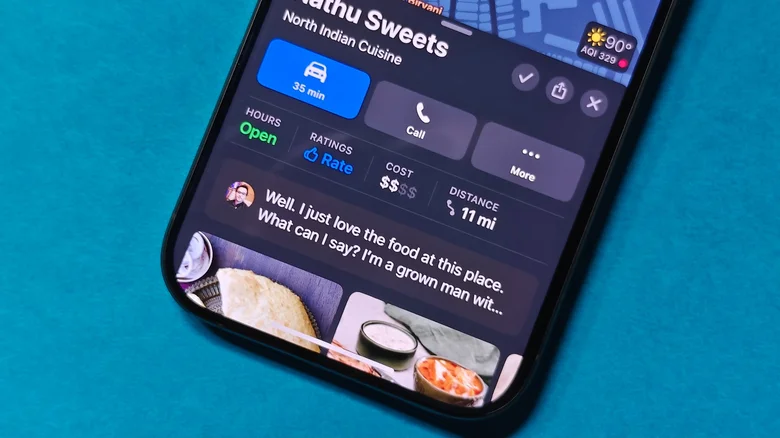
image 58

This feature is especially useful because the notes are private, viewable only by you. Unlike public reviews, your custom notes stay personal, making them perfect for planning trips or storing personal information about specific locations.

Now that you know how to add custom notes, you can easily make Apple Maps a more personalized tool for organizing and planning your travel and research needs.


ADVERTISEMENT
RECOMMENDED
NEXT UP

Apple has quietly rolled out a major update to its App Store experience, officially launching a fully redesigned web-based App Store that allows users to browse and discover apps across all Apple devices from a single online hub. The move, first spotted by MacRumors and 9to5Mac, marks a significant expansion of Apple’s ecosystem — bringing the App Store’s signature design and features to the browser for the first time.

According to the company, it now has a modern, app-store-like interface that looks similar to the App Store on iPhones, iPads, Macs, and other products. The domain was previously used as a holding place that hosted static information about apps or redirected users to in-device App Store pages.

A Centralized Experience Across All Apple Platforms

image 5

The new update allows them to easily search through apps across device categories like iPhone, iPad, Mac, Vision Pro, Apple Watch, and even Apple TV. Each section provides curated app lists, editorial recommendations, and Apple’s popular “Today” tab to show off featured apps, developer spotlights, and trending downloads.

The interface also allows users to browse applications based on their categories, such as Productivity, Entertainment, Games, Education, and Health & Fitness, and provides a much more streamlined and searchable experience than in the past.

Search, Share, and Explore — But Not Download

While this new web-based App Store does introduce better navigation and search, Apple is retaining control over where the downloads actually happen: users cannot install apps directly from the web version of the store. Instead, the website offers quick options to share listings of apps or open them directly in the native App Store app on an Apple device.

This is a design choice in concert with Apple’s long-term ecosystem strategy: making sure all app installations continue to go through its official App Store infrastructure, where the company can enforce strict privacy, payment, and security controls.

Smarter Search Portal for Developers and Users

Another welcome improvement: A prominently placed search bar finally allows users to quickly find apps by name, category, and even developer. Apple’s web app pages were previously static, unindexed, and generally inaccessible unless directly linked to a page.

Now, with an interface that is entirely searchable, this latest Web App Store serves dually as a marketing tool for developers and a place of discovery for users, maximizing app exposure to bring developers’ creations in front of larger audiences outside of Apple’s devices.

Expanding Apple’s Ecosystem Online

Apple’s extension of the App Store’s web presence also comes at a time when regulators and users are increasingly pressing for more openness and accessibility across all digital platforms. In creating this new, more interactive web presence, Apple seems to be taking steps toward greater transparency and discoverability, if still through a tightly integrated ecosystem.

The update also comes amidst Apple’s growing focus on cross-device experiences – especially as it promotes new platforms like Apple Vision Pro, which integrates apps across immersive and traditional interfaces.

Looking Ahead: Apple’s Strategy in a Changing App Landscape

The launch of the web App Store might seem like a minor revision, but it shows that Apple is taking a long-term view to elevate discovery and engagement of apps beyond its hardware. By opening the App Store to any browser, Apple enhances the user experience and reinforces its developer ecosystem by providing greater visibility and traffic to millions of applications without compromising strict app distribution policies. This latest move by Apple strikes a careful balance between innovation, control, and accessibility in a world of rapidly evolving digital ecosystems and increasing regulatory pressures. This is where the App Store, as the linchpin of the Apple experience, is now more connected than ever.

Signal has rolled out a critical privacy-focused update for its Windows app, introducing a “screen security” setting that prevents the system from capturing screenshots—directly countering Microsoft’s controversial Recall feature.

This move reinforces Signal’s commitment to user privacy, ensuring sensitive conversations remain protected even against AI-powered background surveillance. Here’s everything you need to know.


Why Signal Is Blocking Windows Screenshots

Microsoft Recall: A Privacy Concern

Microsoft’s Recall feature (announced in 2023) continuously captures and stores screenshots of user activity, allowing Windows 11 users to “scroll back in time” and revisit past actions.

Despite Microsoft pausing Recall’s rollout after backlash, the company reintroduced it in April 2024 via the Windows Insider Preview Channel with key changes:
✔ Opt-in requirement (users must enable it manually)
✔ Pause functionality (temporary deactivation)

However, Signal argues that Recall still poses risks:
🔴 Potential exposure of sensitive chats (even if encrypted)
🔴 Lack of granular app-level control (Recall captures everything by default)

How Signal’s “Screen Security” Works

When enabled, this setting:
✅ Blocks Windows from screenshotting Signal’s window (shows a blank screen instead)
✅ Prevents Recall from storing private conversations
✅ Maintains end-to-end encryption integrity

⚠ Trade-off: Some accessibility tools (like screen readers) may not function properly with this setting active.


How to Enable (or Disable) Signal’s Screen Security

Step-by-Step Guide

  1. Open Signal Desktop
  2. Go to Settings > Privacy > Screen Security
  3. Toggle “Block screenshots” (enabled by default)

🔹 Disabling the feature requires confirmation (to prevent accidental deactivation).
🔹 A warning appears reminding users of potential privacy risks.


Signal’s Critique of Microsoft’s Approach

In a blog post, Signal expressed frustration with the need for such workarounds:

“We hope that AI teams building systems like Recall will consider these implications more carefully. Apps like Signal shouldn’t need a ‘one weird trick’ to protect user privacy—developers deserve better tools.”

Key Issues with Recall

🔸 No API for apps to opt out (forcing manual workarounds like Signal’s)
🔸 Potential security vulnerabilities (stored screenshots could be accessed by malware)
🔸 Privacy vs. convenience imbalance (users may not fully understand the risks)


What This Means for Windows Users

image 25

✔ Signal users gain stronger privacy protection against Recall.
✔ Other encrypted apps (like WhatsApp, Telegram) may follow suit.
✔ Microsoft faces continued scrutiny over AI-powered surveillance features.

Should You Disable Recall Entirely?

If privacy is a priority:

  1. Avoid enabling Recall (if using Windows Insider builds).
  2. Use Signal’s screen security for encrypted chats.
  3. Monitor future Windows updates for improved privacy controls.

Final Verdict: A Necessary Move for Privacy

Signal’s update highlights the growing tension between AI convenience and user privacy. While Microsoft positions Recall as a productivity tool, its always-on screenshotting raises legitimate security concerns.

By proactively blocking Recall, Signal sets a precedent—tech companies must prioritize privacy by design, not as an afterthought.

ADVERTISEMENT
Receive the latest news

Subscribe To Our Weekly Newsletter

Get notified about new articles